User Interface Overview
Yamada uses a three-panel design for easy navigation.
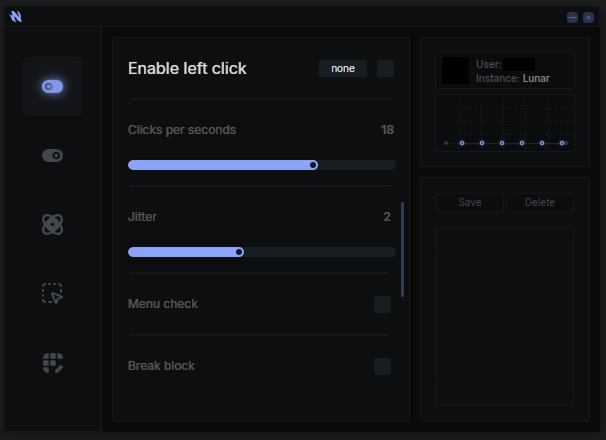
Sections:
- Left Sidebar: Navigation tabs
- Center Panel: Module configuration
- Right Panel: Profile & stats
- Bottom: Configuration carousel
Left Sidebar - Navigation
Five icon-based tabs for switching between modules.

Tabs:
- Left Click - Left-click automation settings
- Right Click - Right-click automation settings
- Click Player - Pattern playback
- Recorder - Click recording
- Settings - Global application settings
Click any tab to switch modules.
Center Panel - Module Area
Main workspace for configuring the active module.
Common Controls:
- Enable Checkbox - Toggle module on/off
- Sliders - Adjust CPS, jitter, multiplier, start delay
- Checkboxes - Menu Check, Shift Disable, Slot Whitelist, Break Block
- Keybind Button - Assign keyboard/mouse controls with Hold/Toggle mode
- Action Buttons - Import, Export, Clear (module-specific)
Right Panel - Profile & Stats
Displays user information and configuration controls.
Profile Section:
- Profile picture (Discord avatar or default)
- Username
Action Buttons:
- Save - Save current configuration as profile
- Delete - Remove selected configuration
Configuration Carousel
Bottom section for quick profile switching.

Features:
- Vertical scrollable list of saved profiles
- Click to load configuration
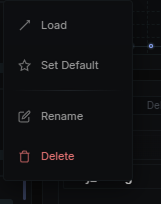
- Right-click for context menu
Context Menu:
- Load - Apply configuration
- Set as Default - Auto-load on startup
- Rename - Change profile name
- Delete - Remove permanently
For help, join Discord.