Profiles
Save and switch between different Yamada configurations.
What's Saved in a Profile
- Module enable/disable states
- CPS, jitter, multiplier settings
- Spike & Exhaust simulation settings
- Keybind assignments (Hold/Toggle modes)
- Menu Check, Shift Disable, Slot Whitelist settings
- Break Block and Start Delay configurations
- Global settings (e.g., Destruct on Close)
- All module configurations
Configuration Carousel
Bottom section of Yamada interface displays all saved profiles.

Features:
- Vertical scrollable list
- Click to load profile instantly
- Active profile highlighted
- Default profile marked with indicator
Loading a Profile
Quick Load:
- Click profile in carousel
- Settings update immediately
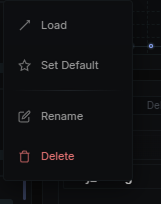
Right-Click Menu:
- Load - Apply configuration
- Set as Default - Auto-load on startup
- Rename - Change profile name
- Delete - Remove permanently
Creating a Profile
- Configure settings (CPS, keybinds, modules)
- Click Save button (right panel)
- Enter descriptive name
- Click confirm
- Profile appears in carousel
Cloud Sync
Profiles automatically sync to the cloud.
Benefits:
- Linked to Discord ID
- Access from any computer
- Automatic backup
- Syncs on create/modify/delete
Requirements:
- Internet connection
- Valid Yamada account
For help, join Discord.